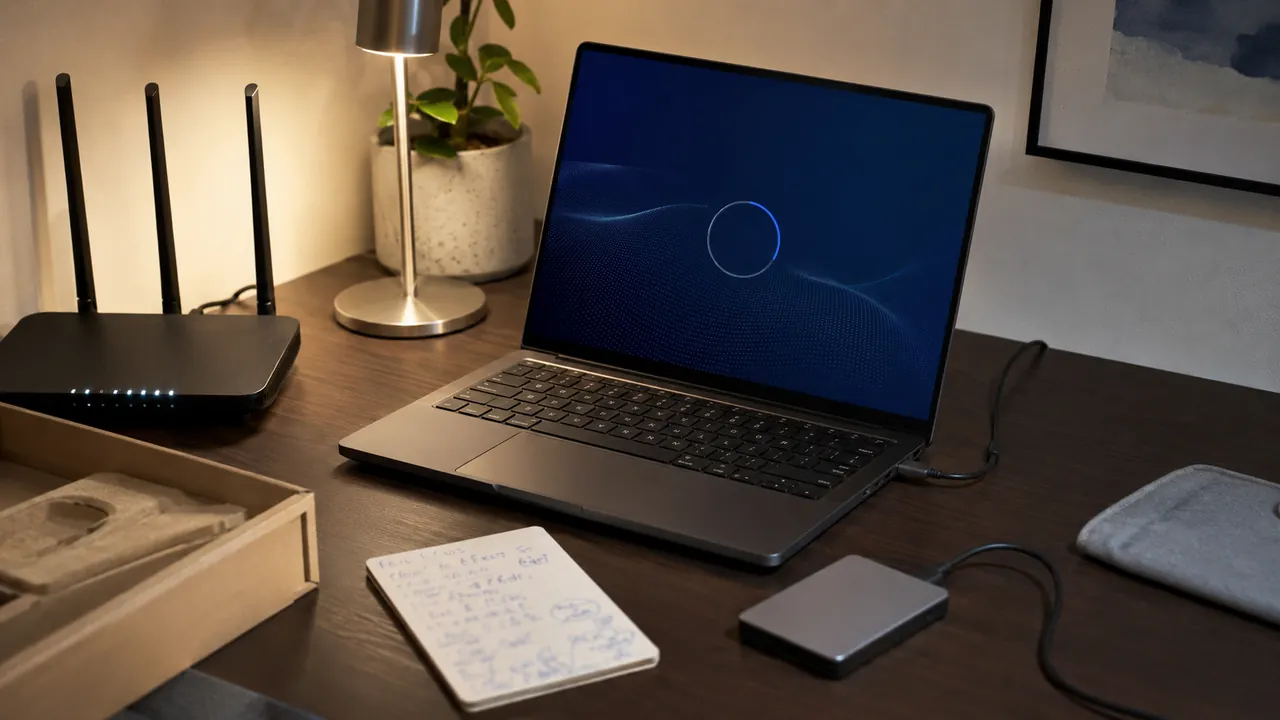
A meeting app can show the right microphone name while the operating system blocks access—or use the laptop mic while sound comes from a headset. A local test exposes that mismatch before other people join.
A two-minute local test catches the permissions, device-selection, lighting, and Bluetooth problems meetings expose too late. Test the exact combination you plan to use: camera, microphone, speakers, network, and room. “Default” is convenient but can change when a dock or Bluetooth device connects.
Close other apps that may hold the camera or microphone and plug the laptop into power. Test from the same chair, room, dock, and headset planned for the meeting.
Test the exact meeting setup
Open the meeting app’s audio test before joining. Run the meeting app’s test with the same dock, headset, and network planned for the call. A different setup produces reassuring but irrelevant results.
Default is a moving target
Select the exact microphone and speaker instead of Default
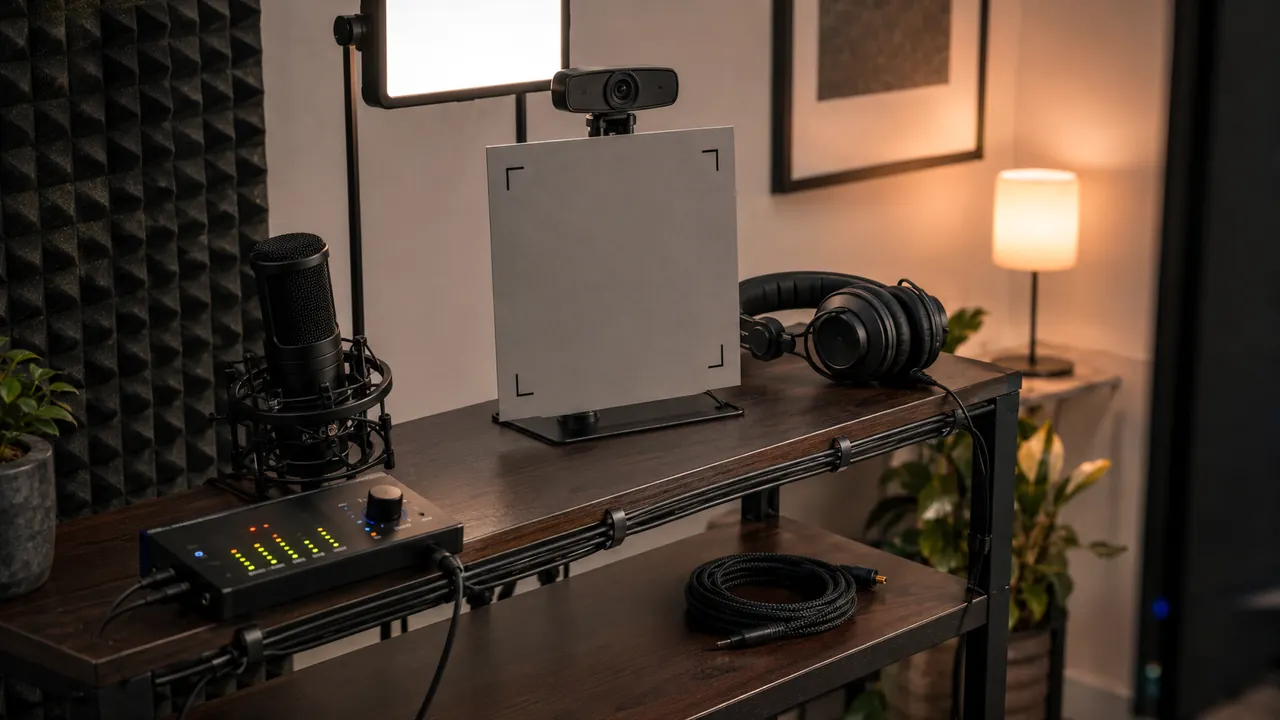
Select the microphone, speaker, and camera by name. “Default” may jump to a monitor, dock, or Bluetooth device when hardware reconnects.
Check operating-system camera and microphone permissions
Check operating-system privacy permissions if the app sees no camera or input meter. Browser meetings may also need a separate site permission.
Use a wired fallback when Bluetooth reliability matters
Record ten seconds locally and listen through the chosen speakers. This reveals hum, clipping, room echo, and a laptop mic selected by mistake.
Place the camera near eye level with light in front of you
Keep a wired headset or phone dial-in option ready for an important call. Bluetooth battery and pairing failures are faster to bypass than repair live.
Bluetooth headsets sometimes expose separate call and high-quality audio modes. If sound becomes thin when the microphone activates, that can be a profile limitation rather than a defective headset.
Solve echo before joining
- Do not troubleshoot echo while two nearby devices both have audio on.
- A moving input meter does not prove understandable sound.
- Background effects can raise CPU use on older computers.
Switch to a wired fallback or another device when audio repeatedly cuts out, permissions reset themselves, or the camera disappears from the operating system.
A wired fallback can save the call
Menus, limits, and recovery options change. Confirm the current steps in “Testing computer or device audio” and “Windows help and learning” before acting.
Zoom provides an audio test that lets users check speakers and microphones before or during a meeting.
Windows provides per-app camera permission controls that can prevent a meeting application from accessing the camera.