The best personal backup plan is boring enough to run unattended and simple enough to restore when you are stressed. One local copy plus one separate copy covers far more real failures than a complicated plan nobody maintains.
A small backup system works only if it runs automatically and can be restored without guesswork. Choose irreplaceable folders first. Photos, school or work files, financial records, and creative projects deserve explicit destinations and a test restore.
Estimate the irreplaceable data size before buying storage, and confirm the backup destination has room for growth. Decide who could access the recovery password if you were unavailable.
Choose what deserves rescue
Choose the folders that would genuinely hurt to lose. List files that cannot be downloaded again: original photos, current work, tax records, and creative projects. Installed apps and streaming downloads usually rank lower.
Two copies with different failure modes
Keep one automatic local copy and one separate copy
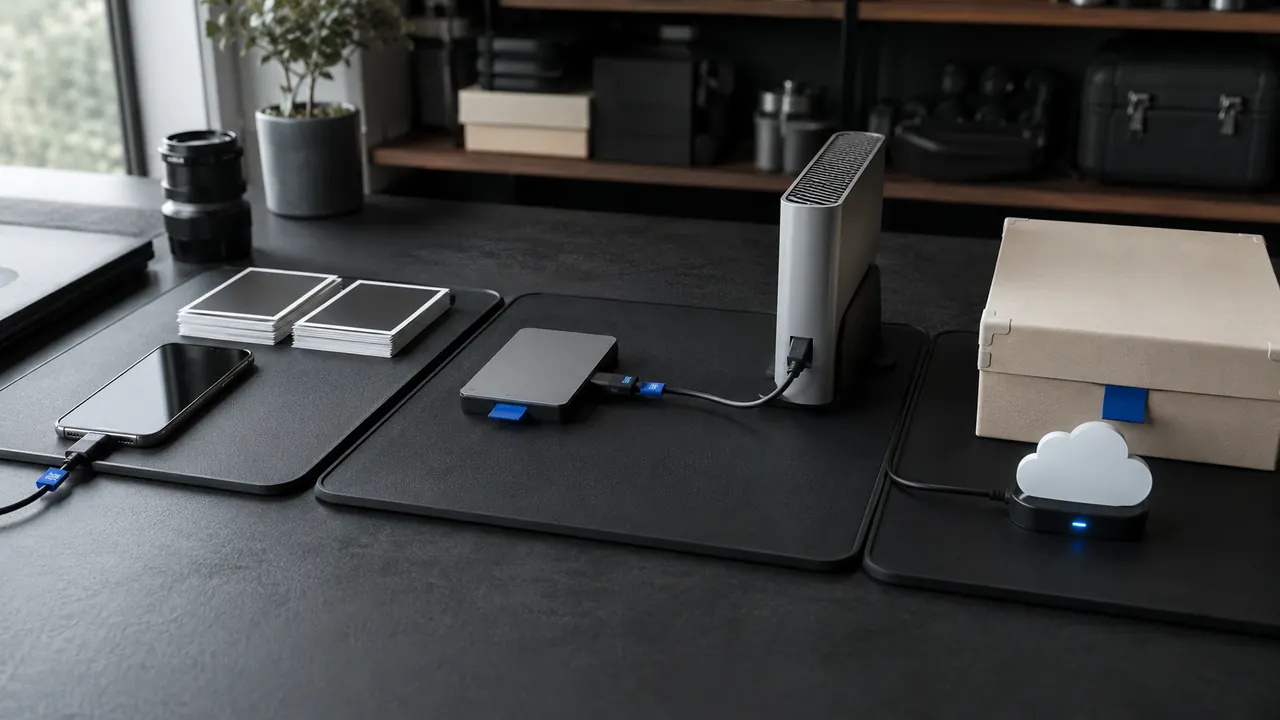
Keep an automatic copy on an external drive or local backup system, plus another copy that is not exposed to the same theft, surge, or ransomware event.
Schedule backups instead of relying on memory
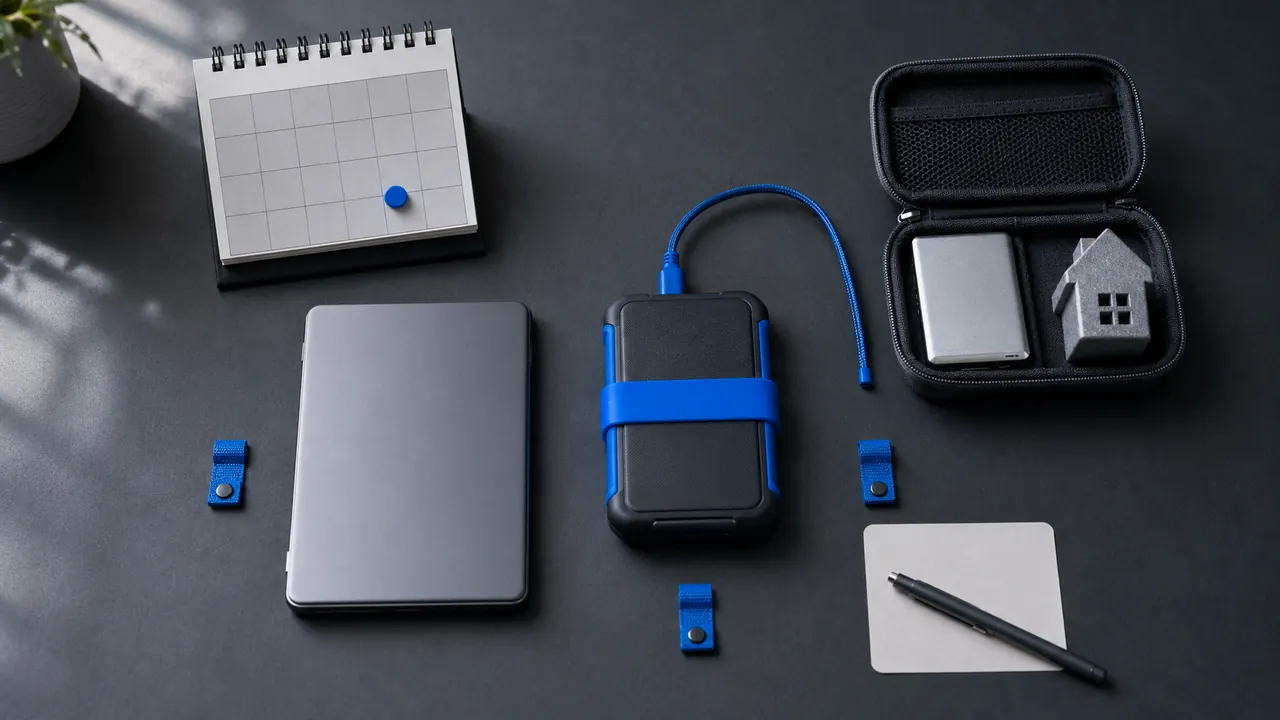
Use scheduled backups and check their last-success time. Calendar reminders are useful for connecting a drive, but the copying itself should not depend on memory.
Encrypt portable backup drives
Turn on encryption for a portable drive because it can be lost with all its contents. Store the recovery password away from the drive.
Restore a sample file every month
Restore a few files to a temporary folder and open them. Include one recent file, one older file, and one large photo or video to test different paths.
Cloud sync and backup solve different problems. If a synced folder propagates an accidental deletion, version history may help, but a separate backup gives you another recovery path. Keep the external copy disconnected when it is not running.
A restore test beats a green checkmark
- Sync is not automatically a historical backup.
- A drive left permanently attached can share the computer’s failure.
- A backup you have never restored is an untested assumption.
Investigate immediately when backup history shows repeated failures, storage is unexpectedly full, or an external drive disconnects during every run.
Warning signs in backup history
Menus, limits, and recovery options change. Confirm the current steps in “Data Backup Options” and “How to back up your iPhone or iPad with iCloud” before acting.
CISA describes backup options as a way to recover data after loss, damage, or cyber incidents.
Apple says iCloud Backup can run automatically when an iPhone is connected to power and Wi-Fi with its screen locked.