A transfer is finished only when the destination contains usable files—not when a progress bar reaches 100 percent. Decide whether you want a one-time copy, a permanent move, or continuing synchronization before choosing the tool.
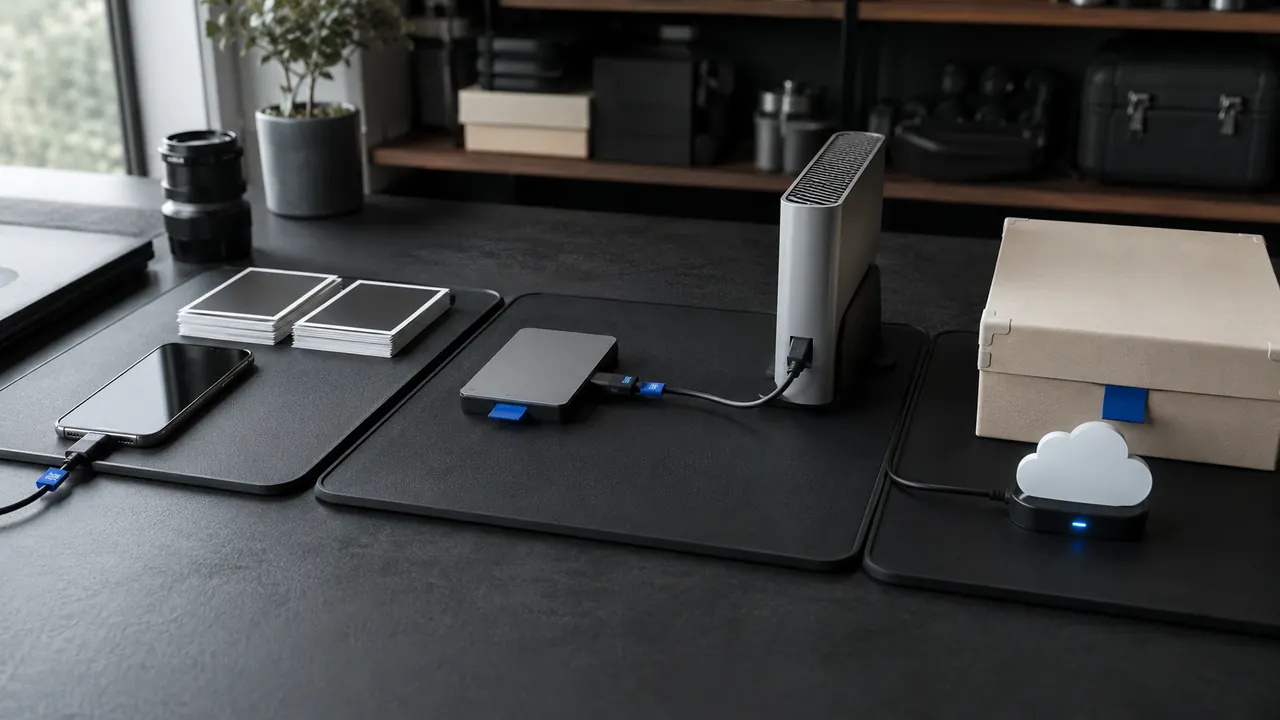
Pick one transfer path, verify the destination, then remove the old copy only after a checksum or spot check. Whole-device migrations work best with the platform assistant; a cable or local share is easier to verify for a selected folder; cloud sync is useful when files must remain available on several devices.
Charge both devices, update transfer apps, and confirm destination storage. Keep the source online only for the chosen method; switching between cable, cloud, and local share creates duplicate partial copies.
Copy, move, or sync?
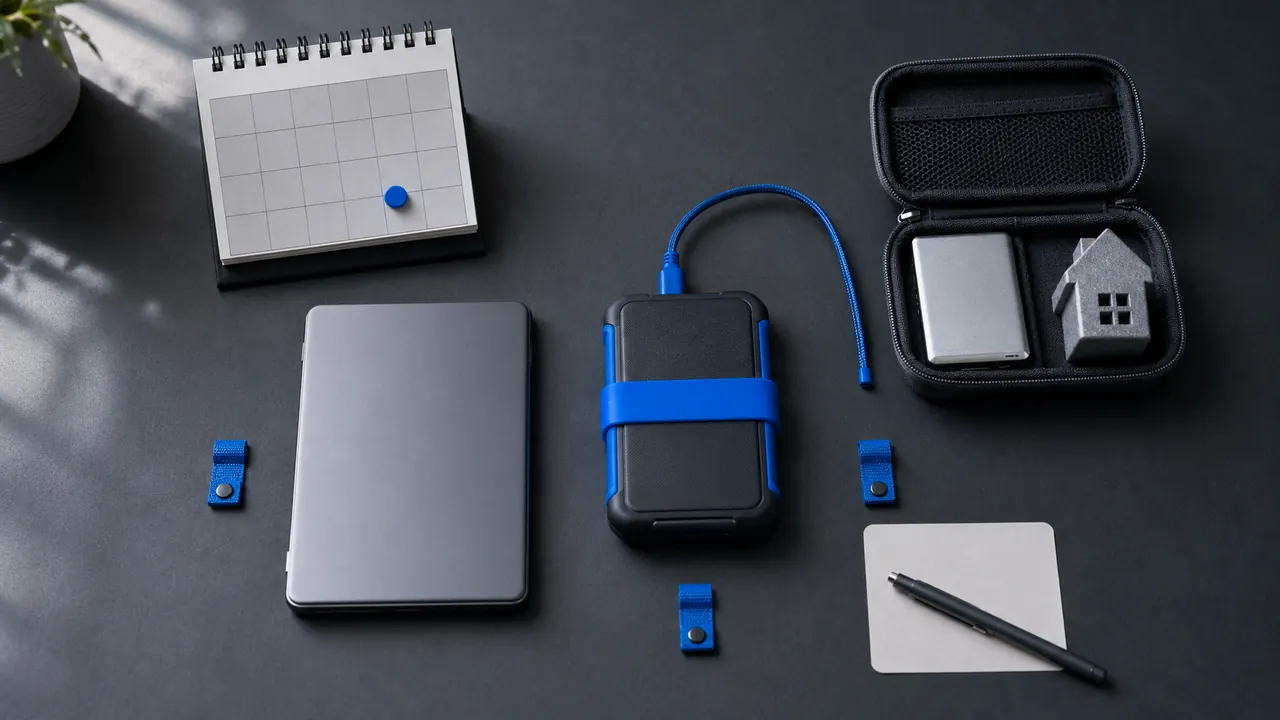
Decide whether this is a move, a copy, or ongoing sync. A copy leaves the source intact; a move does not; sync can repeat edits and deletions on every connected device. Choose deliberately before selecting a tool.
Pick one route and verify it
Use the platform transfer tool for a whole-device migration
Whole-phone migration tools preserve more app and account context than dragging folders. Use them during initial setup when the new phone still offers the transfer workflow.
Use a cable or local sharing for large folders
For large photo or video folders, a cable or local share avoids cloud upload limits. Copy one folder at a time and keep the source untouched.
Preserve original timestamps when they matter
Check whether dates, filenames, albums, and original resolution survived. File counts alone will not reveal recompressed photos or missing metadata.
Count files and open samples before deleting the source
Open samples on the destination and compare folder counts before erasing anything. Keep the old device charged and offline for several days if practical.
Messaging apps, authenticators, and encrypted notes may require their own export or transfer procedure. Check those before the old phone is reset; their data may not live in the visible photos and files folders.
What progress bars do not prove
- Do not interrupt a migration because the progress bar pauses.
- Do not mix several cloud services in one move.
- Do not erase the old device until account and media checks pass.
Stop before erasing the source if counts differ, original photos will not open, timestamps matter but changed, or encrypted app data has not appeared.
Safe moment to erase the source
Menus, limits, and recovery options change. Confirm the current steps in “Copy apps and data from an Android to a new Android device” and “Transfer data from your previous iOS or iPadOS device to your new iPhone or iPad” before acting.
Google’s Android transfer guidance supports copying apps and data during setup of a new Android device.
Apple documents device-to-device and backup-based methods for moving data to a new iPhone or iPad.