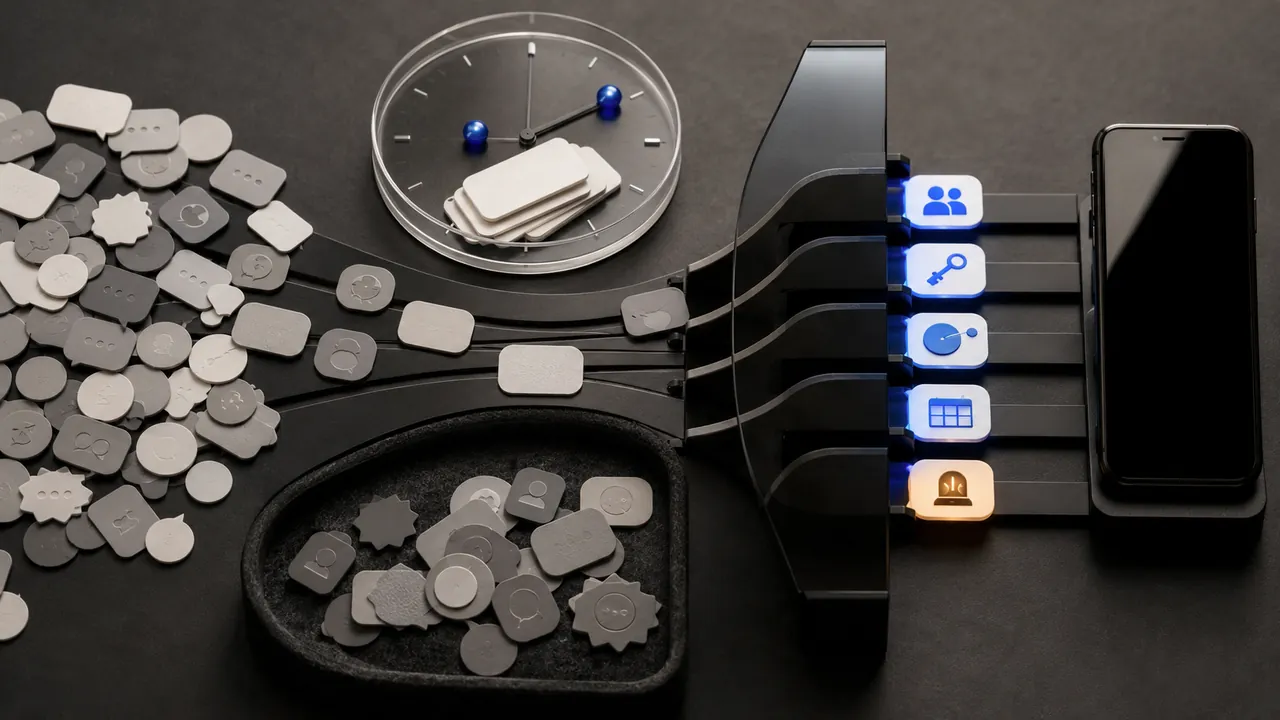
Sort notifications by consequence, not by app: allow immediate alerts for safety, account security, time-sensitive travel and selected people; deliver useful but nonurgent updates quietly; turn off promotional and redundant alerts. The objective is not zero notifications. It is making an interruption mean something again.
Start with the lock screen
For one day, notice every alert that appears. Classify it as act now, review later or never needed. Do not spend an hour designing a perfect system first. The loudest offenders usually reveal themselves quickly: shopping promotions, social recommendations, game rewards, news duplication and apps announcing features.
Protect the critical lane
Keep emergency alerts configured according to your needs and local guidance. Preserve fraud, password-reset and sign-in alerts for important accounts. Allow calendar reminders for events you would otherwise miss, travel changes during active trips and calls or messages from chosen people. Test whether Focus or Do Not Disturb allows the contacts and repeated calls you expect.
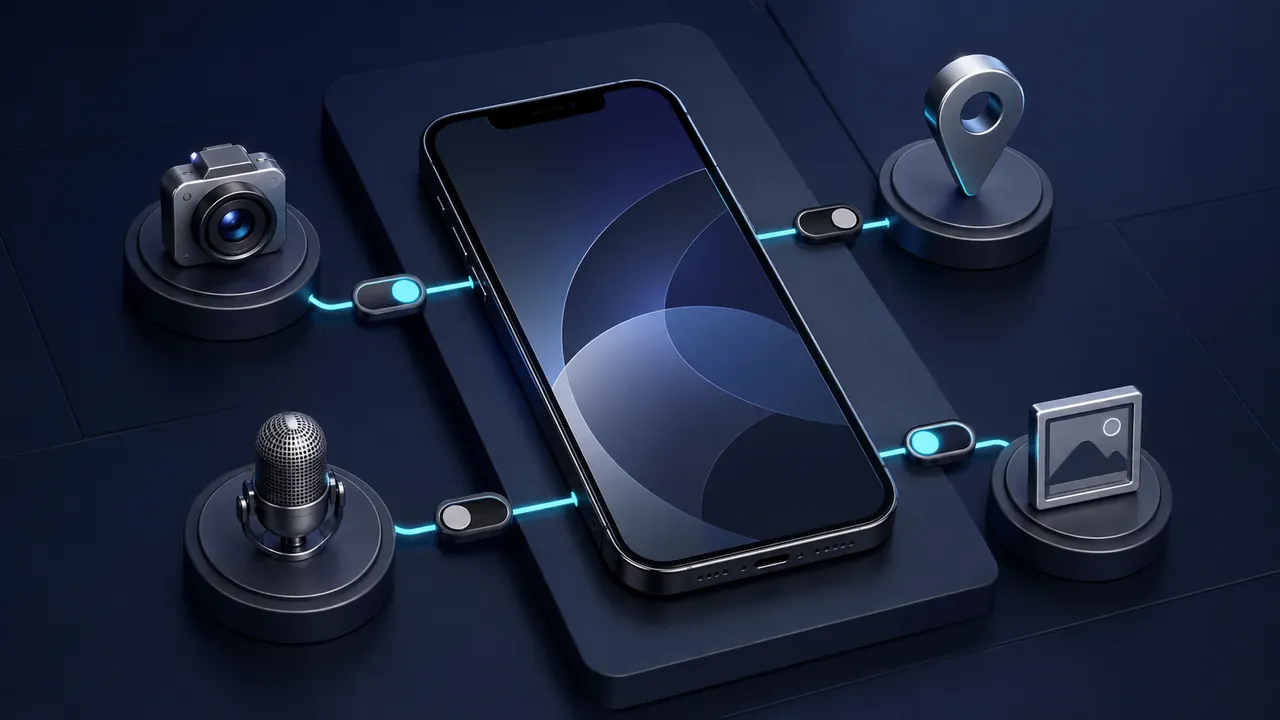
Be careful with notification previews on a locked device. Apple and Android let users control whether sensitive contents appear. Hiding preview text can preserve the alert while reducing exposure to anyone holding the phone.
Make the middle lane quiet
Useful notifications do not all deserve sound, vibration and a banner. iPhone supports scheduled summaries for eligible notifications, while Focus modes can allow selected people and apps. Android offers per-app and per-channel controls, enabling some categories from an app while silencing others. Windows can turn notifications on or off by app and use Do Not Disturb and focus sessions.
Move delivery-status updates, routine news, community messages and low-priority work channels into quiet delivery or summaries. Keep badges only where the count causes a useful action. A red number that can never reach zero is decoration, not information.
Remove the bottom lane
Disable promotions, suggested posts, engagement reminders and duplicate alerts when you already receive the information elsewhere. Unsubscribe from email rather than merely muting the mail app if the sender has no value. Inside an app, turn off marketing categories that the system-level switch cannot distinguish.
Design around checks
Choose times to review quiet channels: perhaps messages at natural breaks, news twice daily and shopping updates when expecting a delivery. Put the app where it is accessible without keeping every push alert. For teams, agree which channel means urgent and which is asynchronous. Technology cannot fix a culture where every message is labeled critical.
Audit after major changes
New apps often request notification access on first launch, before proving value. Choose not now and enable it later if needed. Recheck after travel, a job change or a new caregiving responsibility. Delete obsolete Focus modes and temporary exceptions. If an alert is repeatedly ignored, demote or disable it.
A twenty-minute reset
- Protect emergency, security, travel and priority-person alerts.
- Hide sensitive lock-screen previews.
- Silence or summarize useful nonurgent categories.
- Disable promotions and recommendations.
- Set review times for quiet channels.
- Test calls, calendar alerts and one security notification.
- Review the system again after a week.
A calmer phone is not one that never speaks. It is one whose sound reliably signals a decision worth making now.