Printers fail in layers: the document, queue, computer, network, printer, and supplies. Reinstalling everything blurs those layers and often makes a small problem harder to identify.
Start with the print queue and connection path; reinstalling drivers is a late step, not the opening move. Begin with the printer’s own status page. If that works, the mechanism and supplies are probably usable, so move outward to the queue and connection.
Use one simple local document as the test job and note any printer-panel error exactly. Complex PDFs, browser pages, and cloud printing introduce extra variables too early.
Ask the printer to test itself
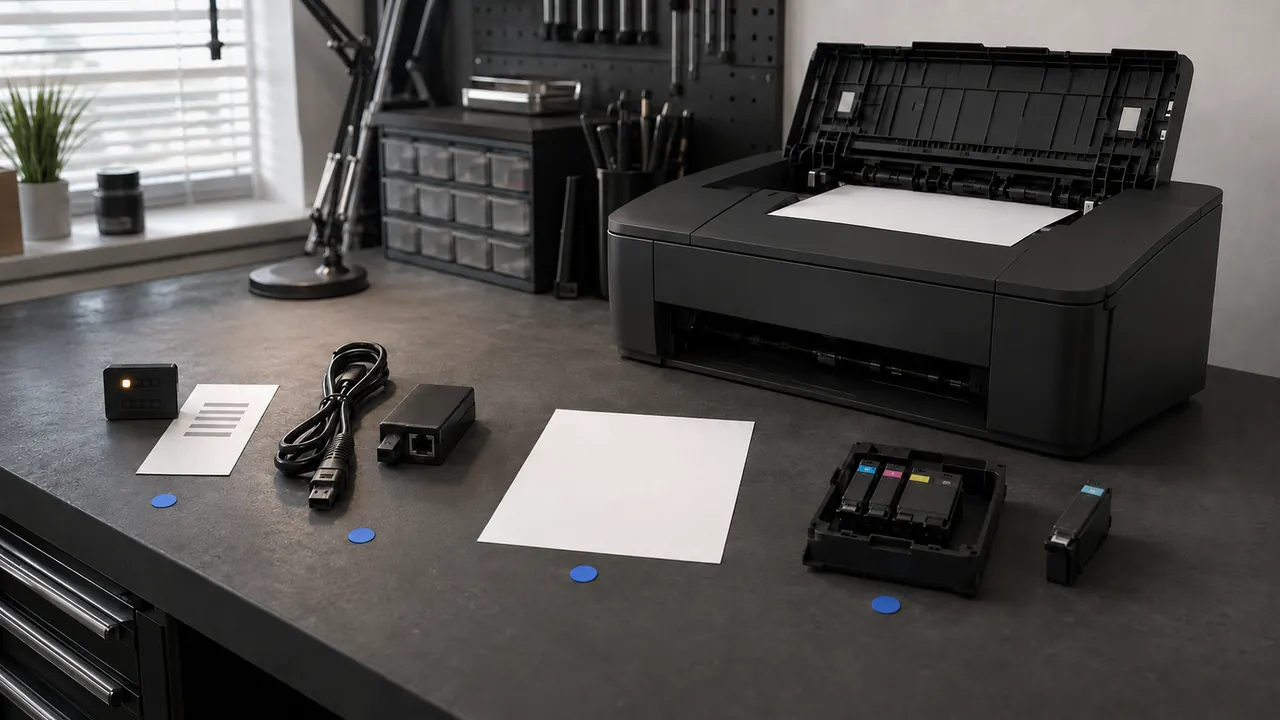
Print the device’s own status page if available. Print the printer’s internal status or configuration page. If that fails, the problem is inside the printer, supplies, or paper path rather than the computer.
Follow the job from queue to paper
Clear only stuck jobs and restart the print service
Cancel the single stuck job before clearing the whole queue. Restarting the print service should follow, because duplicate submissions can leave many identical jobs waiting.
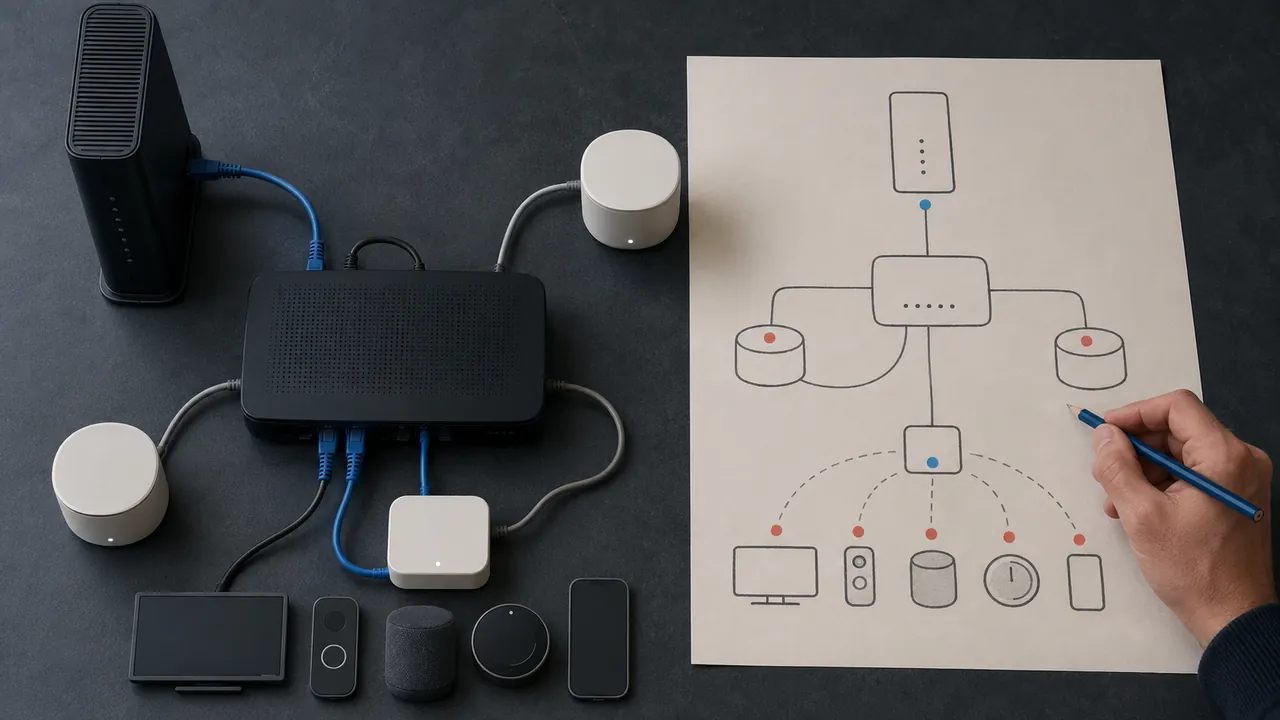
Confirm computer and printer are on the same network
Confirm the printer and computer use the same local network and subnet. Guest Wi-Fi often isolates devices even though both can reach the internet.
Add by current IP or discovery after checking sleep state
Wake the printer and check its current IP address before adding it again. Routers can assign a different address after long sleep or power loss.
Update firmware and drivers from the manufacturer
Get firmware and drivers from the printer manufacturer or Windows Update. Third-party driver sites add risk and rarely know the exact hardware revision.
A printer that works by USB but not Wi-Fi has already cleared the document, driver, and print-mechanism layers. That points attention toward network discovery, address changes, isolation, or the wireless interface.
Why repeated reinstalling backfires
- Do not repeatedly submit the same job.
- Do not download drivers from third-party driver sites.
- A successful scan does not always prove the print path works.
Seek hardware service for grinding, repeated paper-path errors with no obstruction, leaking toner, or a printer that cannot produce its own internal test page.
Mechanical trouble has different clues
Menus, limits, and recovery options change. Confirm the current steps in “Windows help and learning” and “Use AirPrint to print from your iPhone or iPad” before acting.
Microsoft’s Windows support organizes help for printer, connection, and device problems.
Apple says an AirPrint device and the iPhone or iPad printing to it must be on the same Wi-Fi network.