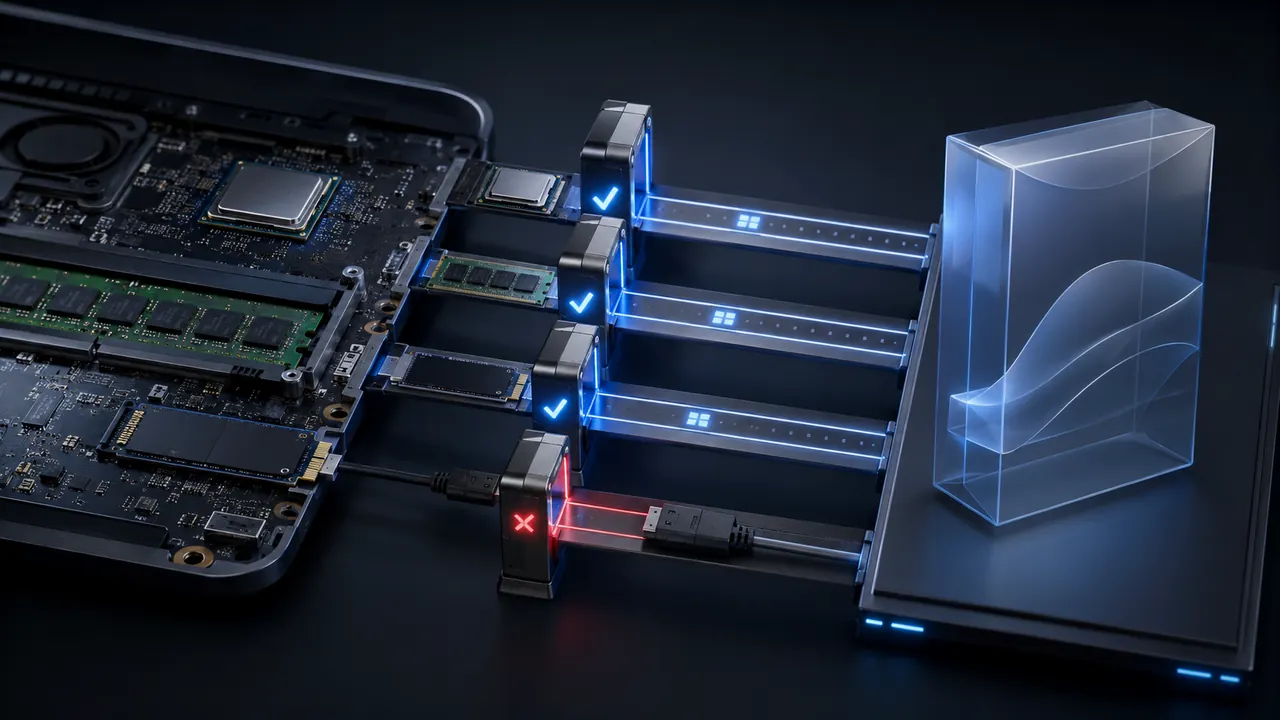
Compatibility means the exact version of a program supports the exact operating system, processor and workflow you have. Before paying, capture your device specifications, compare them with the current vendor requirements, and test the real tasks you care about during a legitimate trial or refund window.
Record what you actually have
On Windows, Settings > System > About provides a quick summary; the built-in systeminfo command can report operating-system configuration and hardware properties such as RAM, storage and network cards. On macOS, use About This Mac and System Information. Record free storage, graphics hardware and the model year where relevant. For phones and tablets, note the device model and operating-system version. Do not rely on a listing that says only Windows, Mac, iPhone or Android.
Processor architecture matters. A program built for x86-64 may require translation on an Arm computer, and a plug-in or driver can fail even when the main application runs. Apple silicon Macs can run many Intel apps through Rosetta, but Apple advises checking with the developer, and support may differ by version. Windows on Arm compatibility has improved, yet hardware drivers and specialized utilities still need explicit vendor support.
Compare minimum and recommended requirements
Minimum requirements usually describe the threshold for launching, not a promise of comfortable performance with large projects. Use recommended requirements for demanding work. Check memory, free storage, graphics capability, display resolution, internet connection and any required account or subscription. Allow extra storage for temporary files, updates and project caches.
Read the support matrix and release notes, not an old retailer description. Confirm the requirements for the precise release sold today. If the vendor supports only operating-system versions that your device cannot install, the purchase is not durable even if a workaround starts it once.
Audit the whole workflow
List the scanner, printer, audio interface, camera, security key, accessibility device and other peripherals the software must use. Check drivers for the new operating system and architecture. Verify plug-ins, fonts, templates, macros and automation tools independently. A creative suite may be compatible while one critical plug-in is not.
File compatibility also needs testing. Ask whether the app can open your oldest important files and export to formats your collaborators use. Create copies before allowing a new version to convert a library or database. Some conversions cannot be reversed by the older program.
Understand cloud and account dependencies
A desktop-looking product may require continuous sign-in, periodic license checks, cloud storage or a specific browser. Check whether offline use is supported and for how long. If multiple people will use it, verify license terms, concurrent-device limits and organization support. A family plan, student plan and business license may provide different rights and administration.
Test with representative work
If a trial is available, use a copy of a real project rather than opening the welcome screen. Import, edit, save, export, print, connect hardware and reopen the result on a collaborator's system. Monitor speed, battery use and accessibility. Record the end of the trial and cancellation process before entering payment details.
Compatibility checklist
- Exact OS edition, version and processor architecture.
- Recommended memory, graphics and free storage.
- Drivers for every required peripheral.
- Support for essential plug-ins and accessibility tools.
- Round-trip tests for important file formats.
- Internet, account and offline-use requirements.
- License scope, device limit and refund terms.
- A tested rollback or migration plan.
If one item is unclear, ask the vendor in writing and keep the response. Compatibility is not a logo printed on a box; it is a chain, and the least-supported link determines whether your real workflow survives.